
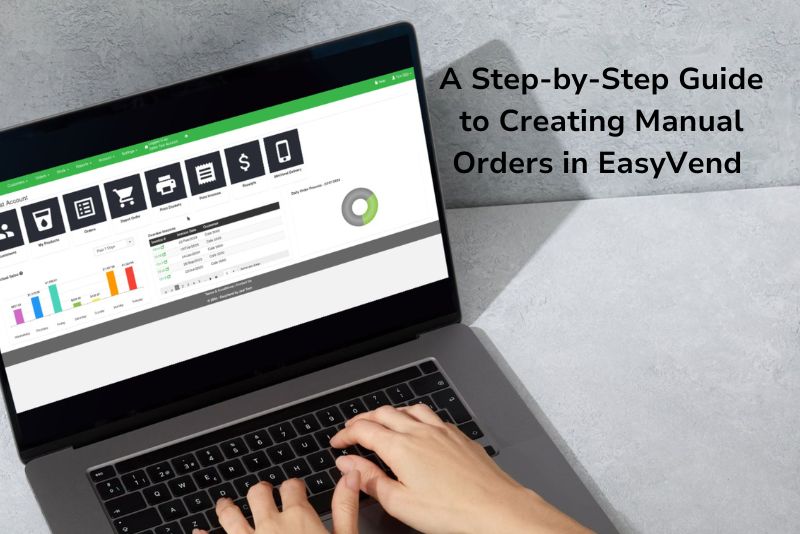
Managing invoices doesn’t have to be a headache. With EasyVend, you have a few straightforward options to get the job done efficiently. In this guide, we’ll walk you through three practical ways to generate invoices in EasyVend, so you can choose the method that works best for your business.
Method 1: Create an Invoice from the Orders Screen
If you’re looking for the quickest and easiest way to create an invoice in EasyVend, this method is a great place to start. Follow these simple steps:
- Locate the “Create Invoice” Button
- After creating an order, navigate to the bottom of the order page. You’ll find the Create Invoice button.
- Generate the Invoice
Clicking the button will immediately generate the invoice for that specific order.
Important Note:
- This method does not automatically email the invoice to the customer.
- If you want to send the invoice, you must manually email it. To do this:
- Go to the customer’s profile.
- Open the Invoices screen.
- Select the invoice by its number.
- Click the Email button to send it.
This method is ideal when you need to quickly generate and review an invoice for a single order.
Method 2: Generate Invoices from the Customer’s Profile
This method is ideal for handling multiple outstanding invoices for a customer all at once. Here’s how it works:
1. Access the Customer’s Profile
Navigate to the customer’s profile. You’ll find the Generate Invoice button both at the top and bottom of the profile screen.
2 .Generate All Due Invoices
Clicking the ‘Generate Invoice’ button will create invoices for all orders due up to and including today’s date. This process respects the settings configured in the customer’s billing information, such as:
- Days Between Invoices: The interval between each invoice.
- Next Invoice Date: The scheduled date for the next invoice.
Example:
A customer set to receive invoices daily may have five un-invoiced orders. Generating the invoice from their profile will consolidate all these orders into one invoice with a single click, saving you the time of handling each order individually.
This method is especially useful for catching up on multiple skipped or canceled invoices efficiently.
Method 3: Batch Invoice Generation
If you invoice customers on specific dates or for a group of customers, batch generation is the way to go. Here’s how it works:
1. Navigate to the Invoices Screen
Access this feature via the Print Invoices quick link on the dashboard or by selecting Invoices from the customer menu.
2. Set the Invoice Date
Click the Generate Invoices button, and a pop-up screen will appear. In the Invoices Due On field:
- Enter the Next Invoice Date configured in the customers’ billing information.
- For example, if a group of customers is set to be invoiced weekly, and their next invoice is due on July 19, 2024, input this date.
3. Apply Filters (Optional)
Use additional filters to narrow your selection if needed:
- Invoice specific customer groups.
- Include only specific customers.
- Focus on a defined customer range.
If no filters are applied, EasyVend will automatically query all customers due for invoices on the specified date.
4. Generate Invoices
Click Generate, and EasyVend will process the batch. Once complete, you’ll see a summary, including:
- The total number of invoices generated.
- How many were automatically emailed to customers.
Why Use EasyVend for Invoice Management?
EasyVend simplifies invoicing, whether you need to generate a single invoice, consolidate multiple orders, or handle batch invoicing for a group of customers. Each method is designed to save you time and effort while ensuring accuracy.
For more information or assistance, contact us today at (02) 9188 4470 or email support@jealtech.com.au.
Start invoicing with ease—EasyVend makes it simple!
How to Create an Invoice in EasyVend from the Orders Screen
If you want to know how to create invoices quickly in EasyVend, the Orders Screen is the best place to start. This method is perfect for businesses that need instant and accurate invoice processing.
After creating an order, navigate to the bottom of the order page. You will find the Create Invoice button. Once you click it, EasyVend will generate invoices for that specific order in seconds.
This approach gives you full control over your invoice management. It allows you to review the invoice before sending it to the customer. If you wish to email it, simply open the customer profile, select the invoice number, and click Email.
Using this feature, you can save time, reduce manual entry, and keep your billing accurate. It is a practical and efficient way to simplify everyday invoice processing in your business.
Batch Invoice Generation in EasyVend: Step-by-Step
For suppliers who handle multiple customers, batch invoicing offers an efficient way to manage billing. EasyVend’s Invoice Management Software allows you to generate hundreds of invoices at once—without extra effort.
To begin, open the Invoices Screen from your dashboard. Click Generate Invoices, and a pop-up window will appear. In the Invoices Due On field, enter the next billing date. This step ensures that EasyVend generates invoices according to each customer’s schedule.
You can also filter by customer group or delivery route to refine your selection. When ready, click Generate, and EasyVend will process all invoices in one batch. You will see a summary of total invoices created and those automatically emailed.
This invoice management process helps you maintain consistency, avoid delays, and enhance accuracy across all accounts. By automating invoice processing, you can focus more on business growth and less on paperwork.
Book a Trial EasyVend or Trial EasyVend today!
FAQs
Yes, you can. In EasyVend, simply open your business account and use the same steps as you would for a customer. This feature helps you test your invoice management software settings before sending real invoices.
A basic invoice should include your business name, customer details, invoice number, issue date, list of products or services, quantities, prices, and payment terms. EasyVend simplifies this by automatically adding these fields when you generate invoices.
Yes, but it requires manual work and constant updates. Unlike Excel, EasyVend automates invoice processing and tracks every transaction in real time. This eliminates repetitive tasks and ensures data accuracy.
In Simple Practice, you can manually create invoices through their billing dashboard. However, for businesses managing high volumes of orders, EasyVend’s Invoice Management Software provides a more advanced, automated alternative for smooth batch invoicing and better control.